Feature Article: Email Statements
July 2026 Tags: Email Statements, Tabs3 Billing
If your firm is still mailing paper statements, you’re spending time and money that could be saved. Tabs3 Billing can automatically generate a customized email message, attach the client’s PDF statement, and send it, all without leaving the software. Getting set up takes just three steps. Stop printing, stuffing, and stamping. Here’s how to send PDF statements straight to your clients’ inboxes.
Choose how to send email
Open Tabs3 Billing Customization (In the Quick Launch, search for and select “Customization”) and on the Main tab select your Email Statements method. We recommend selecting Microsoft 365 if you are on Version 2024 (Build 24.1.24) or later and have a Microsoft 365 account.
After selecting Microsoft 365 in Customization, you’ll be prompted to sign in.
- On the Sign in page, enter the email address for the account you want to use to send email statements and click Next.
- Enter your password and click Sign in. If two-factor authentication is enabled, complete the verification prompt.
- Review the permissions for Tabs3 Billing and click Accept.
- If your Exchange server requires administrator approval, enter a brief reason in the justification field (e.g., “Sending email statements from Tabs3 Software”), click Request Approval, and then click Back to app.
- When asked to stay signed in, click Yes.
Alternatively, you can set up email statements using Microsoft Outlook or SMTP. For more information, KB Article R11409, “Comparing Methods for Email Statements,” walks through the differences between each email statements method.
Create your email templates
Email templates define the message that accompanies each statement. Open Email Templates (In the Quick Launch, search for and select “Email Templates”). The first time you open this window, Tabs3 Billing automatically creates a set of sample templates to get you started.
Templates can include a custom From Name and From Address, CC and BCC recipients, and a message body that automatically fills in client-specific details, such as the client name, balance due, statement date, and more. You can create as many templates as your firm needs, but at minimum you’ll need one template with a valid From Address before any statements can be sent.
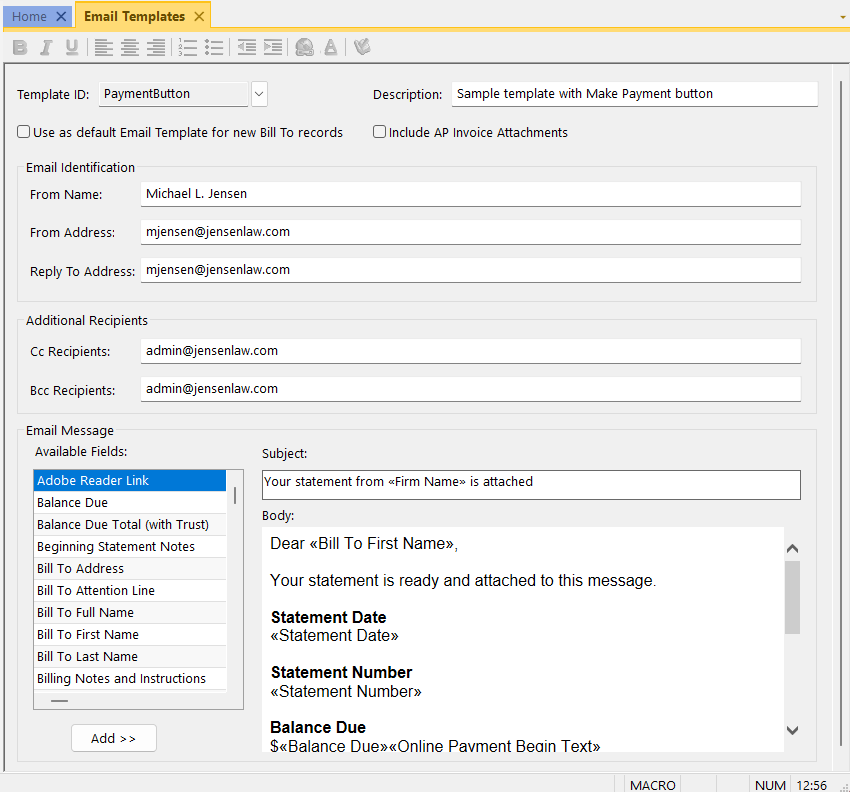
We recommend reviewing the sample templates first as they’re a good starting point for most firms. See KB Article R11911, “Using and Customizing the Sample Email Templates,” for detailed guidance on creating and customizing templates.
Set up your clients to receive email statements
The final step is telling Tabs3 Billing which clients will receive statements by email — and how. Before you start, make sure each client has an email address on the Address tab of the Client file. If no address is listed, click the blue Contact Name hyperlink to open the contact record and add one.
Next, specify the template for the Bill To record.
- From Client Information (In the Quick Launch, search for and select “Client Information”), select the Client ID and then click the Billing Preferences tab.
- Select the Bill To record in the Statement Delivery Options table and click Edit.
- Select the Email Statement check box.
- Select the Email Template to use for this client and click OK.
- Press Ctrl+S.
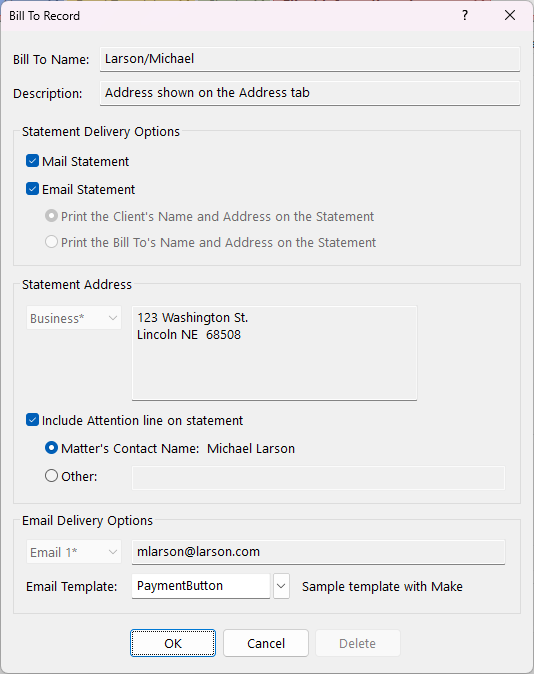
To apply a template to all new clients automatically, open the template and select Use as default Email Template for new Bill To records. To update the email template for a group of existing clients at once, use the Change Client Options feature (In the Quick Launch, search for and select “Change Client Options”).
Once your clients are configured, you’re ready to go. Run your statements as you normally would, and when you’re ready to send, open the Email Statements window (In the Quick Launch, search for and select “Email Statements”) to review and send.
For more information, see KB Article R11913, “Emailing Tabs3 Billing Statements.”