Feature Article: Meet the New Tabs3 Connect for Cloud Users
November 2026 Tags: Alarms, Calendar, Dashboard, eNote, Lists, Recap of Hours, Tabs3 Connect, Timers
Tabs3 Connect has a new look for Tabs3 Cloud users. It’s built around how you work every day, so the information you use most is easier to find and you need fewer clicks to get your work done. Here’s what’s new.
A Home Base: The New Dashboard
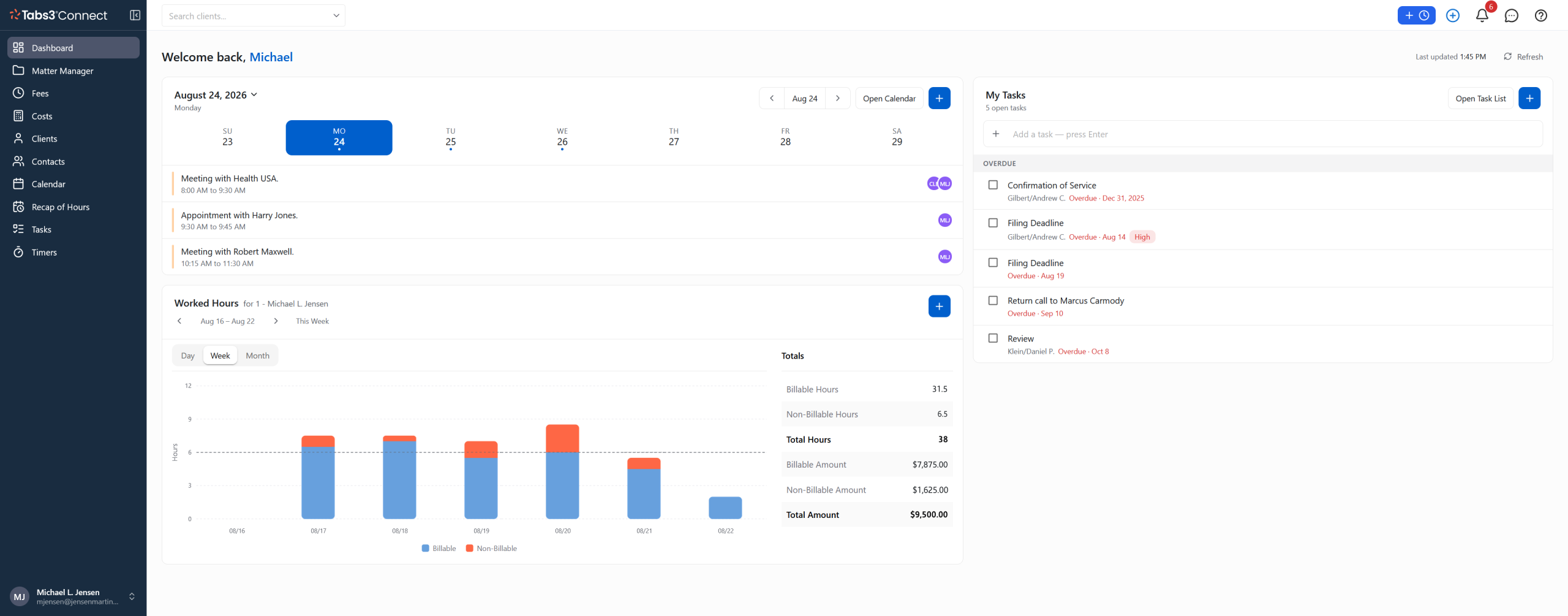
The Dashboard shows your day on one screen:
- Your week at a glance. See your week’s appointments. You can jump straight to the full calendar or add an event from here.
- My Tasks. Your open tasks appear here, and you can quickly add a new task by typing it and pressing Enter. Mark any task complete by checking it off your list.
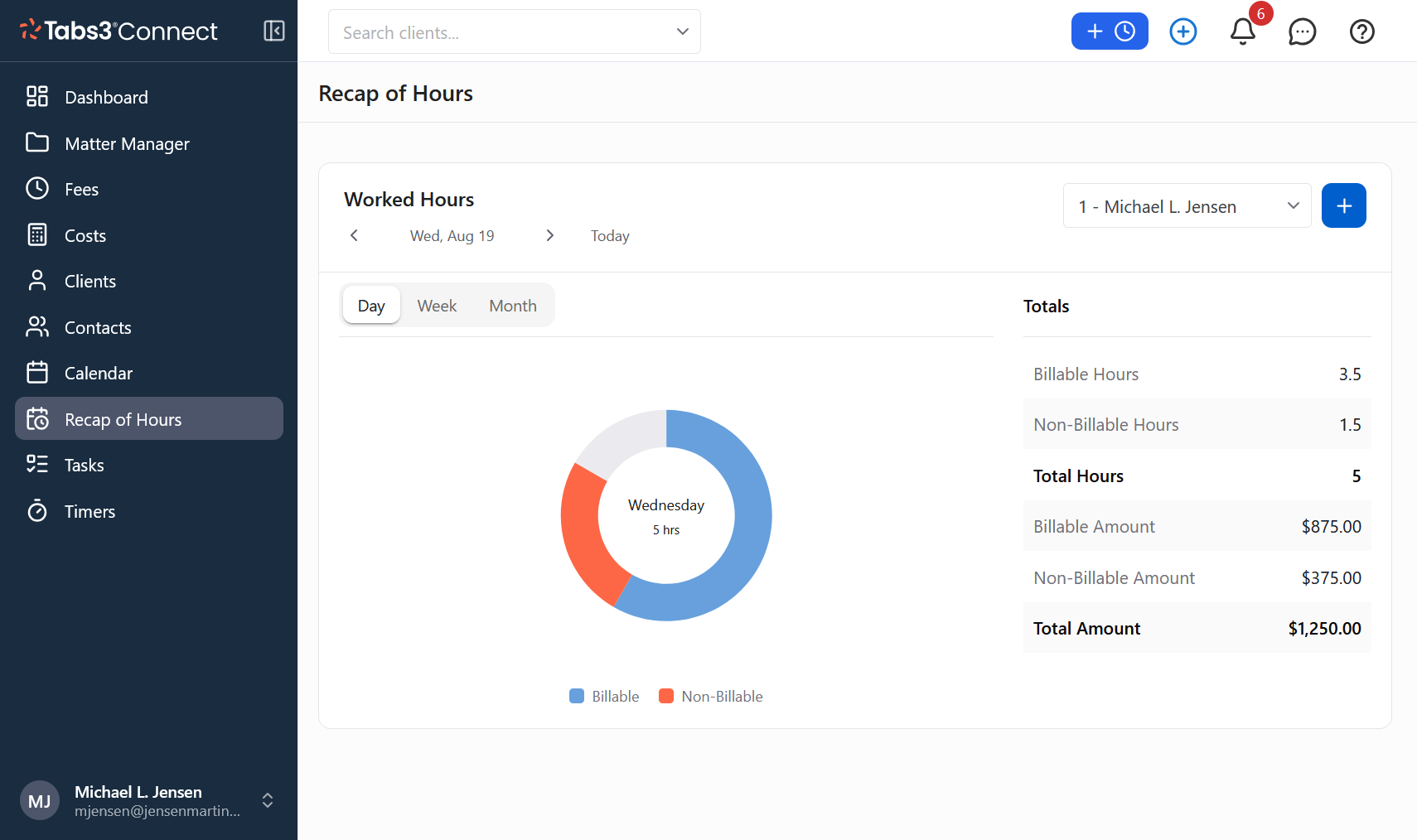
- Worked Hours. See your billable and non-billable hours and amounts for the day, week, or month.
Easier Navigation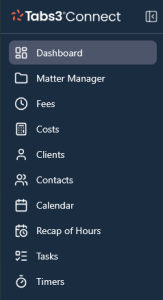
- Sidebar menu. All areas are always one click away on the left sidebar: Dashboard, Matter Manager, Fees, Costs, Clients, Contacts, Calendar, Recap of Hours, Tasks, and Timers. You can collapse the sidebar when you need more room.
- Client search from anywhere. The search box at the top of every page takes you straight to a client.
- Quick actions in the header. Start a new timer, add a new record, check alarms and eNotes, or open Help from any page.

More Control Over Your Lists
Lists now have additional features:
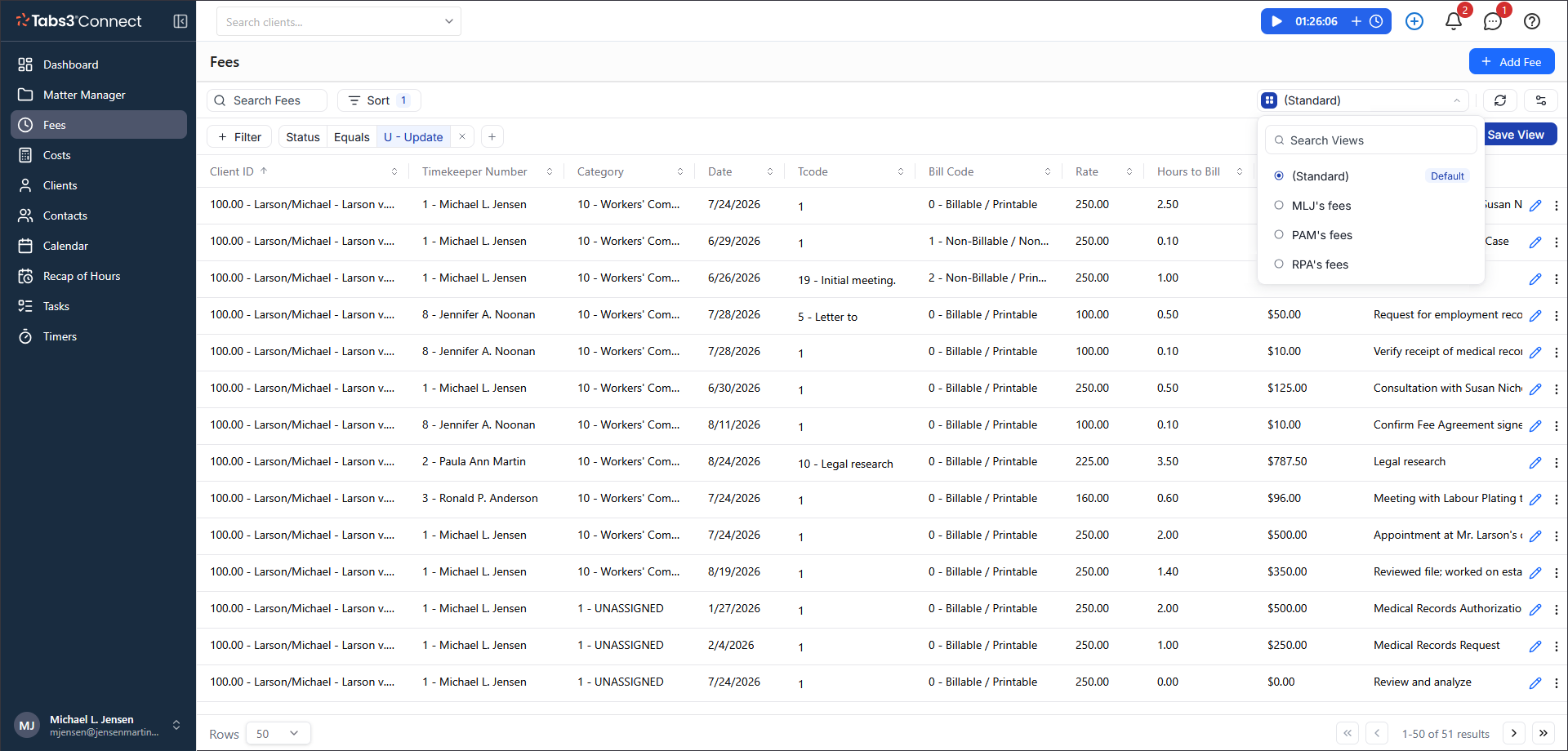
- Search, sort, and filter your records.
- Choose which columns to show and drag them into the order you want.
- Change the row height and column size, and wrap long descriptions.
- Save your setup as a view to use again later.
Matter Manager: Key Numbers Up Front
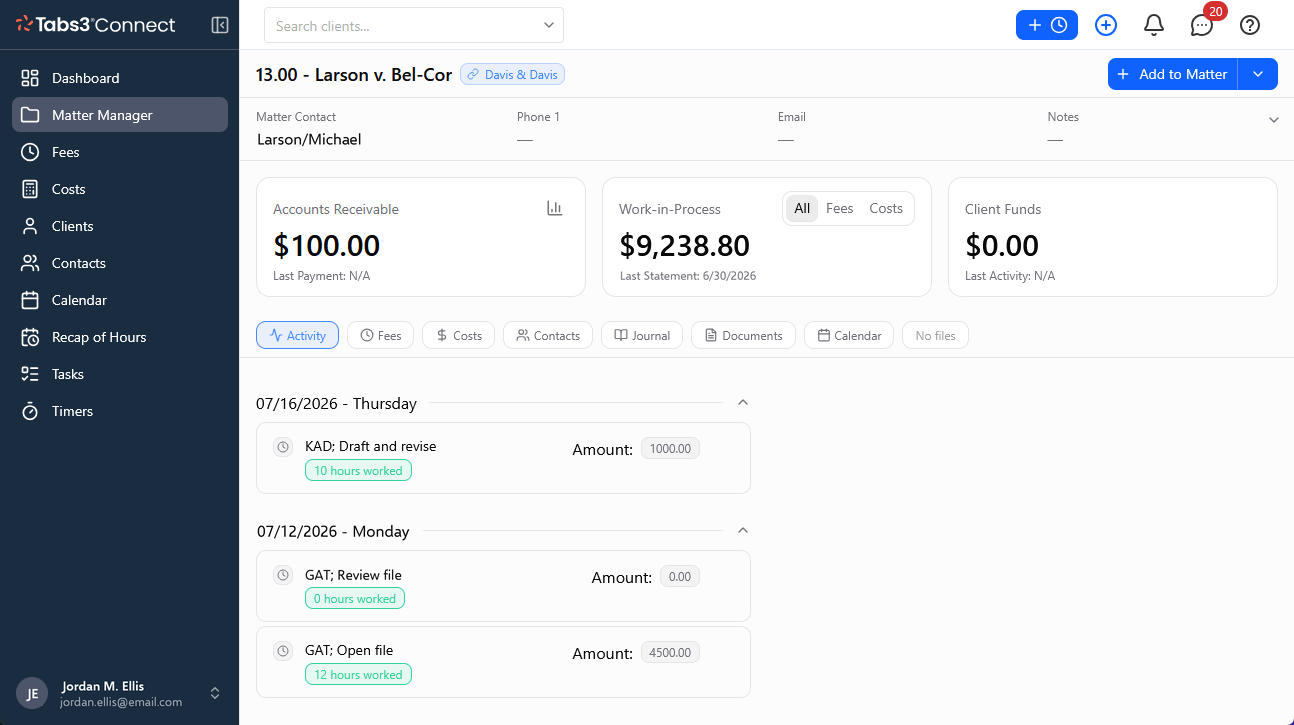
Every matter now opens with summary cards for Accounts Receivable (click to see a breakdown by aging period), Work-in-Process (you can switch between all, fees, or costs), and Client Funds. Below the cards you can quickly access Activity, Fees, Costs, Contacts, Journal, Documents, and Calendar for this matter. Common client related records, area of practice records, and any custom record groups are also accessible.
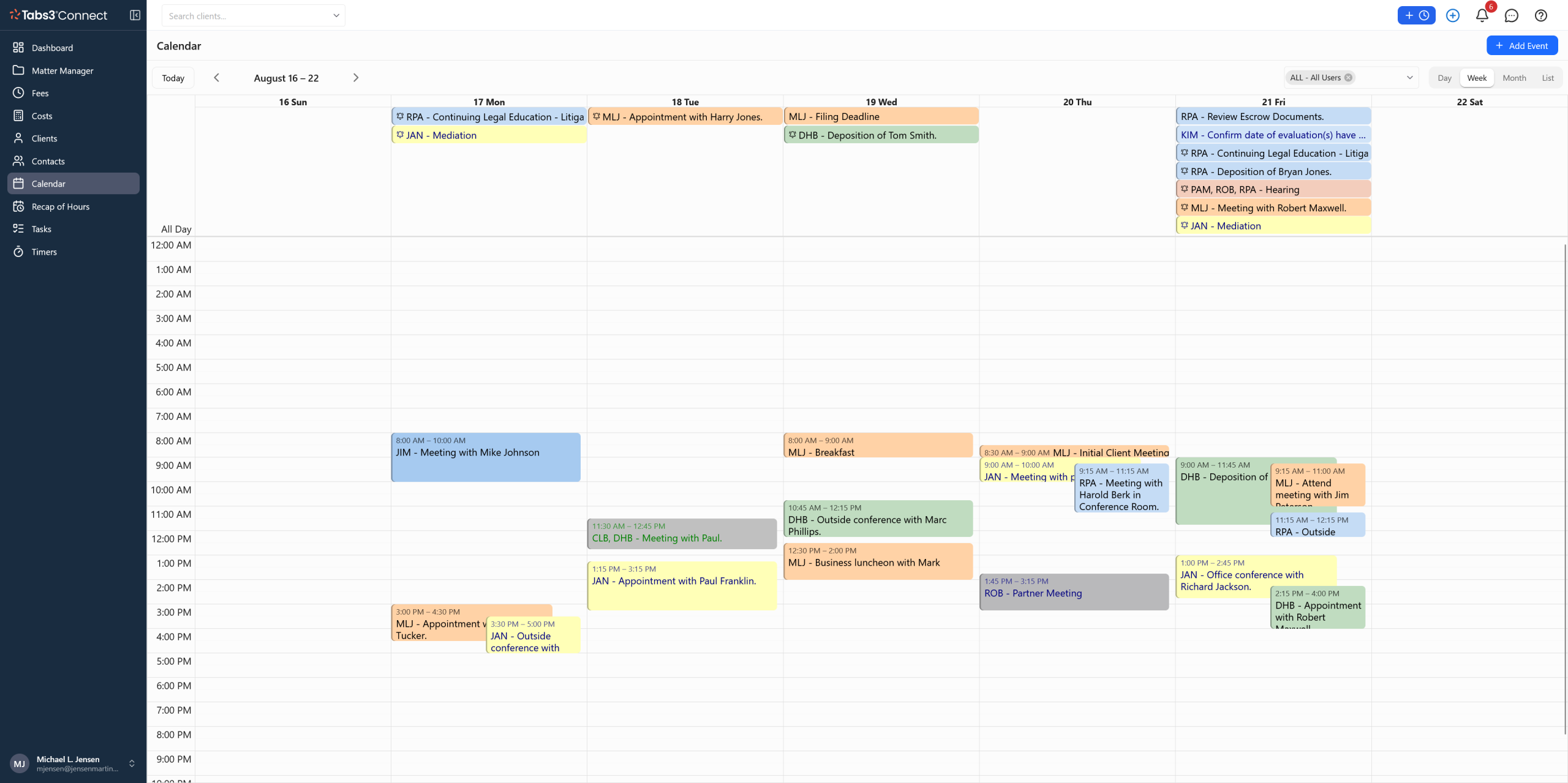
A More Visual Calendar
You can switch between the Day, Week, Month, and List views with one click. In Day and Week view, appointments appear on a time grid so you can quickly spot open time. Reminders and tasks can optionally appear in the All Day section at the top of the window.
Recap of Hours, Expanded
Recap of Hours shows a chart of your billable and non-billable time for the day, week, or month, with your totals beside it.
Dedicated pages for other features:
- eNotes show in the toolbar as they are received, and you can access a list of your eNotes from the reading popup.
- Alarms also show notifications in the toolbar for your upcoming events.
- Tasks has its own page, with built-in All, Incomplete, and Complete filters.
- Timers shows all your timers in one list, and you can restart any of them with the play button, edit or delete the timer, or convert it to a fee.